ECE 120 Lab Q&A
Continuously updated, contributions welcome
Before we start
Classmates were finding the ECE 120 labs hard, and I happen to have a tiny bit of background (roughly none), so I collected the problems everyone ran into and wrote them up as a Q&A.
Lab 1
Q1: What do all these things typed at the command line mean?
A1:
Example:
1
[tofucurd@linux ~]$
This is the CLI (command-line interface). It is the same kind of thing as the graphical interface we are used to — an interface for operating the computer. In a sense, that one line is equivalent to this window:
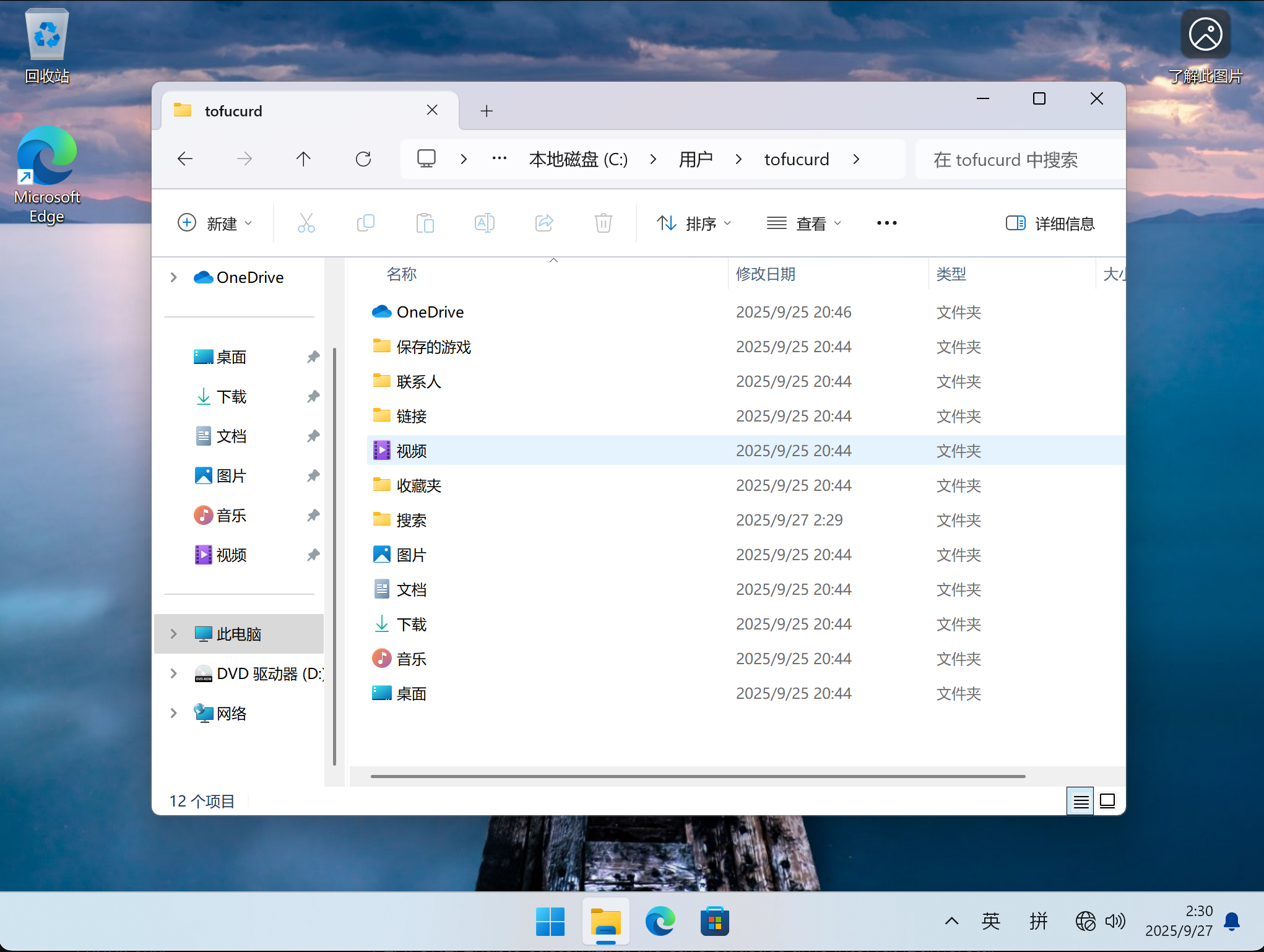
Here tofucurd is the local username, linux is the hostname, and they are separated by @. The brackets [] are not always present. ~ is the current working directory (~ is a variable: it stands for the current user’s home directory — /root for the superuser, /home/<username> for a normal user, so /home/tofucurd here), which is to say that every operation runs there by default unless you specify otherwise. $ is the prompt, telling you that a command can be typed after it. $ is not fixed either — it may be #, %, and so on.
What we type after $ is the command:
1
2
3
4
[tofucurd@linux ~]$ ls
[tofucurd@linux ~]$ touch a.txt
[tofucurd@linux ~]$ mkdir -p b/c/
[tofucurd@linux ~]$ mv a.txt b/c/
Here ls, touch, mkdir, mv are applications, or commands — the same category of thing as Word, Chrome, or Genshin Impact. Typing that line means you want to use the application to do something, exactly like double-clicking it in Windows. What follows — a.txt, -p — are arguments (not required), meaning how you want to use it. Every application takes different arguments with different syntax, in the same way that Word: Ctrl+N to create, Ctrl+O to open differs from Chrome: Ctrl+L for the address bar, Ctrl+R to reload. When you finish the line and press Enter, the application runs, with the arguments you specified; the window may print something back, and that is the application’s feedback — like a context menu popping up in Word. When it finishes, it exits and returns to the prompt:
1
2
3
4
5
6
7
[tofucurd@linux ~]$ command
...
...
(the application's output)
...
...
[tofucurd@linux ~]$ <-- and here you can type the next command!
So running one line of command is equivalent to, in a graphical interface: open a window → use the application to do something → close the window.
Q2: What is a directory?
A2:
A directory is a string of characters that describes the “position” of a file or folder in the system, so that we can locate exactly what we want without ambiguity. For example:
1
/home/tofucurd/GithubRepositories/tofucurd.github.io/_posts/2025-9-27-ECE120 Lab Q&A.md
Here home, tofucurd, _posts, tofucurd.github.io are folder names, and the final 2025-9-27-ECE120 Lab Q&A.md is the file name. The / between folder and folder, or folder and file, is the separator: home/tofucurd means the folder home contains a folder called tofucurd, and _posts/2025-9-27-ECE120 Lab Q&A.md means the folder _posts contains a file called 2025-9-27-ECE120 Lab Q&A.md. On Linux (or macOS, FreeBSD, and other Unix-like systems) the top-level folder is /, also called the “root directory”. It is not inside any folder and contains every folder and file in the system, so a directory starting from / is called an absolute path.
But locating everything from the root every time is genuinely tedious. We can imitate the real-world trick of saying “about 10 metres to my left” instead of “39.90403°N 116.40753°E”, and use a relative path instead:
1
2
./a/b/c
../d/e/f
Here . and .. are variables. . is the current working directory (the part represented by ~ in [tofucurd@linux ~]$). .. is the parent of the current directory: in /a/b/c/d, if the current directory . is /a/b/c, then .. is /a/b and ../.. is /a. ./a/b/c means the file or folder c inside folder b inside folder a inside the current directory. ../d/e/f means f inside e inside d inside the parent directory — that is, folder d is a sibling of the current folder, and both live under the same parent.
Two commands cover most navigation: ls and cd.
ls is “list”: it lists what the current directory contains. With no arguments by default; -al lists the same information in more detail.
cd is “change directory”: cd <target>, where the target may be relative or absolute.
The workflow on the command line is: look at the prompt to see where you are → ls to see what is there → cd to move.
Q3: I can’t create a folder, it says I don’t have permission
A3:
Cause
This happens to people using WSL — they created the folder from the Windows file explorer, inside a Linux directory.
Solution
WSL does let you reach the Linux filesystem from the Windows explorer, but you should still not operate on Linux files with Windows applications. Close the explorer and use mkdir on the command line.
PS. In Lab 1 you should be using svn mkdir!!!
Q4: svn reported that stuff is not under version control
A4:
Cause
The folder was created without prefixing mkdir with svn .
Solution
You do not need to delete the stuff folder — just run svn add stuff.
Q5: svn reported that stuff is not a directory
A5:
Cause
The stuff folder had not been created before running svn mv baz.txt stuff.
PS. The mv command does two jobs: moving and renaming (arguably one operation). In the command above, since there was no folder called stuff, mv treated stuff as a file name and you renamed baz.txt to stuff. Had the folder existed, mv would have moved baz.txt into it, keeping the name.
Solution
Run these in order:
1
2
3
svn revert baz.txt
svn mkdir stuff
svn mv baz.txt stuff
Q6: svn reported that xxx is not a working copy
A6:
Cause
This usually appears right after checkout, when you have not entered ./ece120fl25/lab1.
Solution
cd into the lab1 directory.
1
cd ./ece120fl25/lab1
PS. If you are unsure, ls first.
Q7: What does svn commit do, and what is -m?
A7:
commit means: I have finished a stage of the work, I can fix a version and sync it to the remote repository. -m is “message” — a note describing what this commit changed. Which means: once you have done everything and committed, your lab 1 is done.